The USB flash drive is compact and easy to carry around. However, as the storage device is so common and easily used, the percentage of the drive being infected by viruses has also increased substantially.
In the Start–>Run and type cmd to run the Command Prompt Window.In the Command Window, type in your flash drive’s drive letter (if your pen drive is detected as G, then type G: and so on). Once you have gone in to your pen drive, now type dir/w/o/a/p and hit Enter. You will then see a list of files. Search whether any of these files appear or exist:
1. Autorun.inf
2. New Folder.exe
3. Bha.vbs
4. Iexplore.vbs
5. Info.exe
6. New_Folder.exe
7. Ravmon.exe
8. RVHost.exe or any other files with “.exe” extension
Flash Disinfector: was designed to remove unwanted files including autorun.inf on removable USB drives, flash drives and memory sticks. Use flash disinfector if you cannot access your USB drives, flash drives and memory stick due to modifications done by autorun Worms.
http://www.techsupportforum.com/sectools/sUBs/Flash_Disinfector.exe
1. Download Flash_Disinfector and save it ot your Desktop
2. After downloading, double-click on Flash_Disinfector to run it.
3. Just follow the prompts and continue until it begin scanning.
4. If asked to insert your flash drive or any removable device including USB Pen Drive and Memory Stick, please do so.
5. It will scan removable drives, wait for the scan to finish. Done.
Clean Autoruns: When you open the drive , it says that it could not find the script file C:\autorun.vbs and whenever you right click on it some weird characters are shown.Now you cant open your drives unless you explore them.
The symptom occurs because when autorun.vbs is created by trojan horse or virus. The virus normally loads autorun.inf file to root folder of all hard drive or USB drive, and then execute autorun.bat file which contains script to apply and merge autorun.reg into the registry, with possible change to the following registry key to ensure that virus is loaded when system starts.:
[HKEY_LOCAL_MACHINE\SOFTWARE\Microsoft\Windows NT\CurrentVersion\Winlogon]Userinit=userinit.exe,autorun.exe
Finally, autorun.bat will call wscript.exe to run autorun.vbs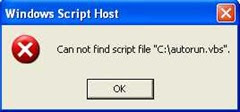
Autoruns utility, which has the most comprehensive knowledge of auto-starting locations of any startup monitor, shows you what programs are configured to run during system bootup or login, and shows you the entries in the order Windows processes them. These programs include ones in your startup folder, Run, RunOnce, and other Registry keys. You can configure Autoruns to show other locations, including Explorer shell extensions, toolbars, browser helper objects, Winlogon notifications, and auto-start services.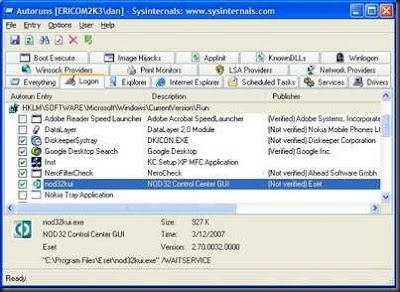
- Download autoruns.zip
- Create a target folder for Autoruns, e.g. “%programfiles%\Autoruns”.
- Extract all files from autoruns.zip to the target folder.
- Inside your target folder you will find the following files now: autoruns.chm autoruns.exe autorunsc.exe Eula.txt
- To launch Autoruns GUI version double click autoruns.exe.
- If this is the first time you launch autoruns, you may be prompted to agree to the license terms. Either accept them and use autoruns or decline them and remove autoruns from your hard disk, please.
- To launch Autoruns command line version, open cmd.exe. Change to the target folder, e.g. “cd %programfiles%\autoruns”. Execute autorunsc.exe plus the appropriate command line arguments.
- To launch Autoruns help file, double click autoruns.chm.
Download Autoruns Virus Remover and Washer: Autoruns Remover and Washer
Download Autorun virus removal tool :It will clean the autorun viruses which are attack to flash drive and only remove autorun viruses when you run the tool.
Autorun Eater:Autorun Eater was born due to increase of malwares using the ‘autorun.inf’ tactic to infect users unknowingly be it from flash drives, removable hard disks or any other removable storage device.
Download :Autorun Eater
Download : Newfolder.exe Removal Tool 2.5
Download BezictoSoft Malwares Loadpoint Removal Tool to remove bha.vbs,RavMon.exe,new folder.exe etc
Ravmon Removal Tools:
http://technodigits.wordpress.com/2007/06/06/ravmon-virus-killer/
Virus RVHost- How to remove it?
The use of USB pen drive devices to spread the virus RVHost and other nasty things is rampant in your part of the world
1. Download and Run ComboFix (how to use it Click here)
Download this file from either of the two below listed places :
http://www.techsupportforum.com/combofix.exe
http://download.bleepingcomputer.com/sUBs/ComboFix.exe
2. Doubleclick on combofix.exe and follow the prompts. A window will open with a warning. Type “1″ (and Enter) to start the fix. When the scan completes Notepad will open with with your results log open. Do a File, Exit and answer ‘Yes’ to save changes.
A caution – Do not touch your mouse/keyboard until the scan has completed, as this may cause the process to stall or your computer to lock. The scan will temporarily disable your desktop, and if interrupted may leave your desktop disabled. If this occurs, please reboot to restore the desktop. Even when ComboFix appears to be doing nothing, look at your Drive light. If it is flashing, Combofix is still at work.
2. Clean any remaining autoruns infections.
- Download the “NoScript” utility by Symantec to your Desktop from:
- http://www.symantec.com/avcenter/noscript.exe
- Run the utility and select to “Disable” and then hit OK.
- Then download “Clean Autoruns”:
- http://forums.techguy.org/attachments/103397d1176780296/clean-autoruns.zip
- Save and extract its contents to the desktop. It is a folder containing a Batch file, Clean autoruns.bat, Written by Mosaic1. Once extracted, open the folder and double click on the Clean autoruns.bat to run the fix.
- If any autoruns are found, the fix will move them to a backup folder.
- If any autoruns are found on the root of your drives, it will kill explorer so that the registry entries in the MountPoint(s) key are fixed.
- It will produce two files, Part1.txt and Part2.txt , that will show the state before and after the cleaning. You can delete these after examining them.
- Download and run “Flash Drive Disinfector” by sUBs. It does not matter if you have flash drives or not, the program is simply named that:
- http://www.techsupportforum.com/sectools/sUBs/Flash_Disinfector.exe
- There is no GUI interface or log file produced.
- Download and run Autoruns Remover and Washer:
- http://www.savefile.com/download/859655?PHPSESSID=d2b639063ee3fd8ed9622af7b99fd929
- (This will also remove RVHost infections).
- Run “NoScript.exe” again, choosing “Enable” this time.Finally, download and run the Ravmon Removal Tool: Smart Virus Remover (Details here)
3. Install the XP USB Reliability Update and USB Hotfix:
http://support.microsoft.com/kb/838989
http://support.microsoft.com/?kbid=918005
Info.exe removal :http://www.spywareremove.com/removeinfoexe.htmlXP USB Reliability Update and USB Hotfix:
http://support.microsoft.com/kb/838989
http://support.microsoft.com/?kbid=918005How to Remove Autorun Malware from Your Computer:Guidelines
http://www.exterminate-it.com/malpedia/remove-autorun-malware
In some situation especially when anti-virus program has cleaned, healed, disinfected or removed a worm, trojan horse or virus from computer, there may be error happening whenever users try to open or access the drive by double clicking on the disk drive icon in Explorer or My Computer window to try to enter the drive’s folder. The problem or symptom happens in hard disk drive portable hard disk drive or USB flash drive, and Windows will prompt a dialog box with the following message:
Windows Script Host ,Can not find script file autorun.vbs.
How to disable or remove the Windows Scripting Host:
http://service1.symantec.com/sarc/sarc.nsf/html/win.script.hosting.html
NoScript utility:is a small Symantec’s program.With it you can disable or re-enable when you want Windows Scripting Host which is the gate for many virus infections.